
Introducing @helix-x/datagrid-ui

A dependency-free React data grid: virtualized rows, server-side paging, sorting, filtering and grouping, inline editing, and theming that is just CSS variables.
Most React data grids ask you to pick a side. The lightweight ones hand you a table tag and leave paging, filtering and virtualization as an exercise. The heavyweight ones bring a plugin architecture, a theme engine, a licence key, and 300 kB of JavaScript before you have rendered a row.
@helix-x/datagrid-ui sits in the gap. Its only runtime dependency is React — peer, never bundled. Styling is plain Tailwind utility classes, so there is no stylesheet to import and no theme engine to configure. And it takes a firm position on one thing: the server owns the data. The grid holds one page at a time and never sorts or filters behind your back.
Installation
npm install @helix-x/datagrid-uiReact 18 or 19 must already be present. One piece of setup is easy to miss: Tailwind skips node_modules when detecting content, so point it at the shipped bundle explicitly or the grid renders completely unstyled.
/* your Tailwind v4 entry point */
@import "tailwindcss";
@source "../node_modules/@helix-x/datagrid-ui/dist/index.js";
On Tailwind v3, add the same path to content in tailwind.config.js.
The smallest thing that works
import { useMemo } from 'react';
import { DataGrid, type ColumnDef } from '@helix-x/datagrid-ui';

const columns: ColumnDef<Person>[] = [
  { field: 'name',  header: 'Name',  flex: 1, filter: 'text' },
  { field: 'email', header: 'Email', flex: 1 },
];

export function People() {
  const dataSource = useMemo(
    () => ({ getRows: (request, signal) => api.list(request, signal) }),
    []
  );

  return (
    <DataGrid
      columns={columns}
      dataSource={dataSource}
      getRowId={(row) => row.id}
    />
  );
}
Three required props. Everything else has a sensible default.
What you get
| Server-side everything | Paging, multi-column sorting, four filter kinds and grouping — all resolved by your endpoint |
| Virtualized rows | Fixed row height keeps the visible range O(1) and the DOM small |
| Four filter kinds | Text, number, date and set, with a floating filter row under the header |
| Row grouping | One level, with server-computed aggregates and groups that load their rows on demand |
| Inline row editing | Five built-in editors, or bring your own, with server-side validation |
| Multi-select | Shift-range selection that survives paging, with per-row locking |
| Per-row styling | Colour a row from its data; pinned and sticky cells follow |
| CSV + clipboard export | Exports every matching row, not just the loaded page; CSV carries a BOM so Excel opens it natively |
| Paging without a total | Backends that cannot count return lastRow: -1 and the pager adapts |
| Persisted layout | Column order, widths, visibility, pinning, sort, filters, grouping and page size |
| Pinned & resizable columns | Stick columns to either edge; drag to resize within minWidth/maxWidth; flex for the rest |
Deliberately not in this version: multi-level grouping, pivoting, tree data, master/detail, variable row heights and .xlsx output.
Server-side is the default, not a mode
The grid never decides what a page, a sort or a filter means. It hands your data source a request and expects rows back:
{
  startRow: 0,
  endRow: 50,
  sortModel: [{ colId: 'marketCap', sort: 'desc' }],
  filterModel: { sector: { filterType: 'set', values: ['Energy'] } },
  rowGroupCols: [], valueCols: [], groupKeys: [], // filled only while grouped
  pivotCols: [], pivotMode: false,                 // always empty
}
That shape is structurally identical to ag-grid’s IServerSideGetRowsRequest, so an endpoint written for that model accepts these requests unchanged. You return { rows, lastRow }, where lastRow is the total across all pages — that is what drives the pager, not rows.length.
The whole client side of the contract is one function:
const dataSource = useMemo(
  () => ({
    getRows: (request: HxRowsRequest, signal: AbortSignal) =>
      fetchStocks(request, signal),
  }),
  []
);
Two details worth knowing. Pass the AbortSignal through to fetch — it is what lets the grid cancel a slow response for a sort the user has already changed, so a stale page can never overwrite a fresh one. And memoise the object; a new identity on every render causes a refetch.

When the server cannot count
Some backends page cheaply but can’t afford a COUNT(*): a search index, a cursor-based API, or a very large table. They can return lastRow: -1, and nothing else changes on the client. The pager reads “1–50 of many”, keeps Next enabled while pages come back full, treats the first short page as the end, and disables Last.
const dataSource = useMemo(
  () => ({
    // The response carries `lastRow: -1`; nothing else changes on the client.
    getRows: (request: HxRowsRequest, signal: AbortSignal) =>
      fetchStocksUncounted(request, signal),
  }),
  []
);
Filters that pull their own options
A column declares which filter UI it wants. Text, number and date filters cover the usual operators — contains, inRange, before, plus blank / notBlank, which take no operand at all.
Set filters are the interesting one. filterParams.values accepts a static array or a function returning a promise, in which case the popover calls it the first time it opens and shows a loading state until it resolves — so the list lives on the server, where it belongs, instead of being duplicated in the client:
{
  field: 'sector',
  header: 'Sector',
  width: 170,
  filter: 'set',
  // A function makes the popover load its options from the API the first
  // time it opens, instead of hard-coding them in the client.
  filterParams: { values: fetchSectors },
}
Row grouping, still on the server
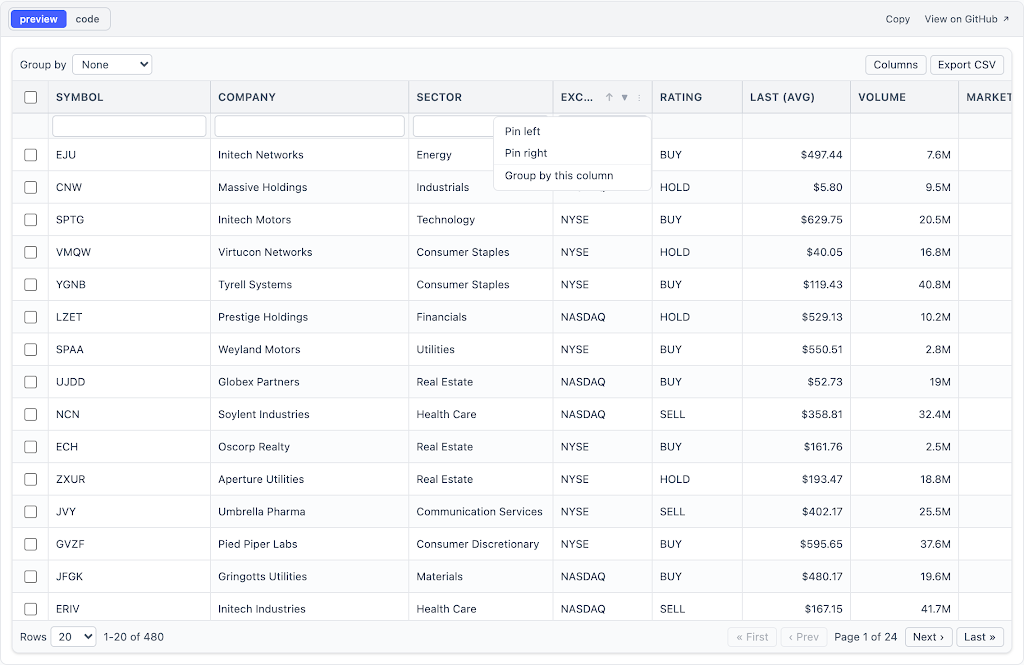
Grouping follows the same rule as everything else: the grid asks and the server answers. Mark the columns that may be grouped by, and the columns the server should aggregate on group rows:
// Offered in the ⋮ menu as "Group by this column".
{ field: 'sector',   header: 'Sector',   enableRowGroup: true },
{ field: 'exchange', header: 'Exchange', enableRowGroup: true },
{
  field: 'volume',
  header: 'Volume',
  align: 'right',
  // Asked of the server while grouped; the group row's value comes back
  // under `volume` and goes through the same formatter as a normal row.
  aggFunc: 'sum',
  valueFormatter: (value) => (value == null ? '' : compact.format(Number(value))),
},
Then pick a starting grouping, if you want one. The user can change it from a column’s ⋮ menu and remove it from the “Grouped by” chip in the toolbar:
<DataGrid<Stock>
  columns={columns}
  dataSource={dataSource}
  getRowId={(row) => row.symbol}
  storageKey="example-grouping"
  // Grouped on first visit; the user's own choice is persisted after that.
  defaultRowGroupColId="sector"
  // Rows fetched each time a group is opened or "Load more" is used.
  groupChildBlockSize={25}
/>
The wire contract is ag-grid’s server-side row model, one level deep, so the data source does not change. Only the request does:
| Request | Return |
|---|---|
rowGroupCols: [{ id, field }], groupKeys: [] |
One row per group: the group value under field, each valueCols aggregate under its column’s field, and childCount. lastRow is the number of groups, and the pager pages over groups. |
rowGroupCols: [{ id, field }], groupKeys: ['Energy'] |
That group’s rows, paged by startRow/endRow, with the usual sort and filters. |
Opening a group fetches its rows in blocks and offers “Load more” when there are more. Each group has its own abort controller and generation counter, so collapsing a group, or re-sorting while one is loading, can never paint stale rows. Changing the sort, the filters or the grouping closes every group. The grid never computes an aggregate itself; a column without aggFunc is simply blank on group rows.
Grouping can also be controlled with rowGroupColId / onRowGroupColIdChange, or driven imperatively with api.setRowGroup(colId). The example’s “Group by” dropdown is just a toolbar render prop over that call.
Rules that depend on the row
Two optional props make decisions per row, from its data. In the market example a SELL-rated stock cannot be selected, and it gets its own background:
const SELL_ROW =
  'bg-error-50 dark:bg-[color-mix(in_srgb,var(--color-error-500)_12%,var(--color-gray-900))]';

const isRowSelectable = (row: Stock) => row.rating !== 'SELL';
const getRowClassName = (row: Stock) => (row.rating === 'SELL' ? SELL_ROW : '');

<DataGrid
  selectable
  isRowSelectable={isRowSelectable}
  getRowClassName={getRowClassName}
  {...rest}
/>isRowSelectable: a rejected row shows a padlock in place of its checkbox. Shift-ranges, the header’s select-all andapi.selectAll()all step over it, and the header checkbox is disabled when nothing loaded can be selected.getRowClassName: a non-empty result replaces the stripe. Editing, selected and hover colours still win, and pinned cells take on the row’s colour. The one rule is that the colour must be opaque, because the sticky checkbox column and pinned cells repaint the row’s background over cells scrolling underneath them.

Editing, with the server holding the rules
Set onRowCommit and rows become editable. Return { ok: true } and the row closes; return { ok: false, errors } and it stays open, with each message painted onto the cell whose column id it is keyed by.
That inversion matters: validation rules do not have to be mirrored in the client. Here the API rejects a note containing TODO with a 422, the fetch wrapper turns that into a ValidationError, and the errors map goes straight back to the grid:
const handleRowCommit = useCallback(
  async (draft: Stock): Promise<RowCommitResult> => {
    try {
      const updated = await saveStock(draft.symbol, {
        rating: draft.rating,
        notes: draft.notes,
        onWatchlist: draft.onWatchlist,
      });
      return { ok: true, row: updated };
    } catch (error) {
      if (error instanceof ValidationError) {
        return { ok: false, errors: error.errors, message: error.message };
      }
      return { ok: false, errors: {}, message: 'Save failed' };
    }
  },
  []
);
Note the row: updated in the success branch. When the server normalises what it was sent (trimming a note, rounding a number, stamping a modified time), returning its copy replaces the draft in place, with no refetch and no lost scroll position. On a rejection, the row-level message appears in the row’s save bar above the per-cell errors. Errors may be keyed by column id or by field, and each one clears as soon as its cell is edited.
Five editors ship built in — text, number, select, date, checkbox — and editor also accepts your own component. editable can be a predicate over the row when only some rows should be editable.
Export means every matching row
A grid that holds one page at a time has an obvious export problem: the page is rarely what the user wants. So the built-in Export CSV button asks the data source for every row matching the current sort and filters, in chunks, up to a cap (1000 by default), and writes them in the visible column order.
api.exportCsv() takes a scope to narrow or widen that:
// Only the rows loaded for this page; no request is made.
api.exportCsv({ scope: 'page' });

// The selected rows across every page, not just this one.
api.exportCsv({ scope: 'selected' });

// Past the default cap of 1000, fetched 250 rows per request.
api.exportCsv({ scope: 'all', maxRows: 5000, chunkSize: 250, fileName: 'stocks-full' });
It returns a promise. Starting a second export cancels one still fetching, which rejects with an AbortError, so a toolbar handler should ignore that case and report anything else. Export always fetches ungrouped rows, even while the grid is grouped. The same fetch loop is exported as fetchAllRows() for code that needs the full result set without a file.
Customization
Cell renderers that keep their column honest
A cellRenderer changes only what is drawn. The column keeps its field, so sorting and filtering still send that field to the server and behave exactly as they would for a plain text column — even when the cell paints a logo and two lines of text.
Images in a virtualized grid need a little care, and the grid does not hide it from you. Reserve the box so rows never reflow mid-scroll, lazy-load so scrolling a few hundred rows does not fire a few hundred requests at once, and handle the failures:
<img
  src={`/api/logo/${symbol}.svg`}
  alt=""
  width={size}
  height={size}
  loading="lazy"
  decoding="async"
  onError={() => setFailed(true)}
  // The explicit box is what keeps the row height stable before the
  // image has loaded.
  style={{ width: size, height: size }}
  className="shrink-0 rounded-md bg-gray-100 object-cover dark:bg-gray-800"
/>
Because the rendered cell is markup, give the column an exportValue so CSV and clipboard copies stay flat.

context, so column definitions never rebuild
Column definitions should be module constants. Anything volatile — in-flight ids, permission checks, event handlers, or a map of which rows just changed — belongs in context, which is handed to every renderer and can be swapped freely.
This is the difference between a grid that repaints and a grid that rebuilds. In the live-updates example, a price flash lives in context, so a tick several times a second repaints cells without rebuilding a single column definition:
{
  field: 'price',
  header: 'Last',
  width: 130,
  align: 'right',
  filter: 'number',
  cellRenderer: ({ row, context }) => {
    // The flash lives in `context`, so a tick repaints cells without
    // rebuilding a single column definition.
    const direction = context.flash[row.symbol];
    const tone =
      direction === 'up'
        ? 'bg-emerald-500/20 text-emerald-700 dark:text-emerald-300'
        : direction === 'down'
          ? 'bg-error-500/20 text-error-700 dark:text-error-300'
          : 'bg-transparent';
    return (
      <span className={`rounded px-1.5 py-0.5 tabular-nums transition-colors ${tone}`}>
        {money.format(row.price)}
      </span>
    );
  },
  exportValue: (row) => row.price.toFixed(2),
}
Live updates without a refetch
api.updateRows() matches incoming rows against the ones currently loaded, by the same getRowId the grid uses everywhere else, and replaces what it finds. No request is made, the page is not re-sorted, and scroll position, selection and any open editor all survive. Ids that are not on the current page are simply ignored — so a feed can be a firehose without the client filtering it first.
useEffect(() => {
  const source = new EventSource('/api/stream');
  source.onmessage = (event) => {
    apiRef.current?.updateRows(JSON.parse(event.data));
  };
  return () => source.close();
}, []);
Theming is six CSS variables
The grid ships no theme engine and takes no theme prop. It renders Tailwind utilities, and Tailwind v4 compiles every colour utility down to a variable reference — .bg-brand-500 { background-color: var(--color-brand-500) }.
So you declare the palette once:
@theme {
  --color-brand-25:  #f2f7ff;
  --color-brand-50:  #ecf3ff;
  --color-brand-200: #c2d6ff;
  --color-brand-400: #7592ff;
  --color-brand-500: #465fff;
  --color-brand-600: #3641f5;

  --color-error-50:  #fef3f2;
  --color-error-300: #fda29b;
  --color-error-500: #f04438;
  --color-error-600: #d92d20;
  --color-error-700: #b42318;
}
…and re-theme at runtime by overriding those same properties. That is the entire mechanism — no rebuild, no re-render, and the grid never learns it happened:
useEffect(() => {
  const root = document.documentElement;
  for (const [step, value] of Object.entries(accent.ramp)) {
    root.style.setProperty(`--color-brand-${step}`, value);
  }
}, [accent]);
Selection highlight, pager, focus rings and filter chrome all follow. Tailwind’s radius scale is variable-driven too, so writing --radius-lg reshapes the grid frame, popovers and panels along with it. Density is just rowHeight and headerHeight; dark mode is the dark class the grid already keys off.


The imperative API
apiRef — or the toolbar render prop, which receives the same object — gives you a handle for the things that do not fit into props:
const apiRef = useRef<GridApi<Stock>>(null);

<DataGrid
  apiRef={apiRef}
  toolbar={(api) => (
    <>
      <button onClick={() => api.refresh({ purge: true })}>Refresh</button>
      <button onClick={() => api.setFilterModel({
        changePct: { filterType: 'number', type: 'greaterThan', filter: 0 },
      })}>
        Gainers only
      </button>
      <button onClick={() => api.exportCsv({ scope: 'selected' })}>
        Export selection
      </button>
      <button onClick={() => api.setRowGroup(api.getRowGroup() ? null : 'sector')}>
        Toggle sector grouping
      </button>
    </>
  )}
  {...rest}
/>
Also on GridApi: getSelectedRows, getSelectedIds, clearSelection, selectAll, copySelectionToClipboard, getSortModel / setSortModel, getRowGroup, resetColumns, startEditing and stopEditing.
Run the examples
Everything above is a real, running example, backed by a zero-dependency mock API that actually performs the paging, sorting and filtering:
git clone https://github.com/suryakand/datagrid-ui
cd datagrid-ui/example
npm install
npm run dev
Seven examples, each with a Preview / Code toggle so you can read the source that produced what you are looking at, and a How it works section explaining the customization underneath:
| Example | What it covers |
|---|---|
| Server-side market data | Paging, sorting, all four filter kinds, editing with server-side validation, locked and coloured rows, CSV export scopes |
| Images in rows | Logos and avatars, composite cells, row height |
| Live updates | SSE feed, updateRows, flashing cells via context |
| Column layout | Resize limits, drag-to-reorder around hidden columns, pinning on both edges, all persisted under one storageKey |
| Row grouping | Server-side groups by sector, exchange or rating, with aggFunc totals |
| Paging without a total | A backend returning lastRow: -1; the pager reads “of many” |
| Theme customization | Accent, density, radius, dark mode |

Every snippet on those pages is extracted from the real source files at build time, so it cannot drift from the code that runs — and each links to the exact lines on GitHub.
A note on what it does not do
Being honest about the edges is part of the pitch:
- Fixed row heights only. This is the constraint that makes the visible range O(1) to compute and removes the measure-then-reflow pass. Tall content means a taller
rowHeightfor every row. - One level of grouping, and no pivoting or tree data. Group rows cannot be selected or edited, and aggregates come from the server. If you need nested groups, pivots or trees, you need a bigger grid.
- Tailwind is not optional. The classes are baked into the markup. Without Tailwind — and without that
@sourceline — you get an unstyled table. - CSV, not XLSX. The BOM makes Excel open it natively, which covers most of why people ask for
.xlsx.
Links
- API documentation — every export, with parameters, defaults and examples. The same comments ship in
dist/index.d.ts, so they appear on hover in your editor.DataGridProps— every optionColumnDef— the main thing you writeHxDataSource— the server contractGridApi— the imperative handle
- GitHub — source, examples, issues
- npm —
npm install @helix-x/datagrid-ui