
Introducing Helix-X Docker Client: a desktop app for any container registry
October 2026 · v0.1.0

Helix-X Docker Client is a free, open-source desktop app for macOS, Windows and Linux. You connect it
to any container registry with a URL and credentials, then browse repositories, tags and manifests and
move images between registries, .tar files and your local Docker engine. You don’t need to rundocker login or sign Docker Desktop in to the registry.
- Repository: https://github.com/suryakand/helix-x-docker-client
- Download: https://github.com/suryakand/helix-x-docker-client/releases
- User guide: docs/user-guide.md
Why it’s needed
Working with more than one container registry is harder than it should be.
- Each registry has its own UI and login. Docker Hub, Harbor, Nexus, Artifactory, ECR, GCR/Artifact
Registry, ACR, GHCR and GitLab each have a different web console. Some of them (a plainregistry:2,
for example) have no UI at all. - The CLI shares login state. To pull a single image from a private registry you run
docker login,
which writes credentials into~/.docker/config.jsonor a credential helper. When you switch between
accounts, or between staging and production, you end up logging in and out repeatedly. - “What’s in this image?” means pulling it. To see an image’s layers, environment, entrypoint or
supported platforms you usually pull the whole image, or you reach forcrane,skopeoorcurlwith a bearer token. - Moving images between registries takes scripting. Promoting
staging/app:1.4.2toprod/app:1.4.2, or carrying images into an air-gapped network as.tarfiles, normally means a
chain ofdocker pull,docker tag,docker pushanddocker savecommands. - Credentials end up scattered across shell history, config files and CI variables.
Helix-X puts all of this in one app. It keeps every registry connection in an encrypted vault on your
machine, gives you one explorer that works the same way for every provider, and turns pull, push, copy,
export and import into a single click each, with progress and retries.
Features
Secure credential vault

- The first time you launch the app, you create a master password. Every registry credential is
encrypted with AES-256-GCM using a key derived with Argon2id. - You can unlock with the OS keychain or Touch ID.
- The vault locks automatically when you’ve been idle for a while, when the computer sleeps or when
the screen locks. You can also lock it yourself with ⌘L / Ctrl+L. - Credentials are always redacted from logs. The design and threat model are documented in
docs/security.md.
Every major registry, one workflow

Supported registry types:
| Provider | Notes |
|---|---|
| Generic / custom Registry v2 / OCI | CNCF Distribution, Zot, Quay, Gitea, registry:2 … |
| Docker Hub | Uses Hub’s API for tag lists (no pull-quota cost) |
| Harbor, Sonatype Nexus, JFrog Artifactory | Including setups where repository listing is disabled |
| Amazon ECR | AWS access keys, SigV4 |
| Google Artifact Registry / GCR | |
| Azure Container Registry | |
| GitHub (GHCR), GitLab |
Each connection has its own TLS options: a custom CA certificate, skip verification (for labs), or
plain HTTP. Test connection shows the auth method, the latency, and whether the registry allows
listing repositories.
Setup guides in the form

You don’t have to look up which token type each provider expects. Click Setup guide in the Add
registry dialog to see that provider’s instructions on top of the form. When you go back, the values you
typed are still there.
Registry management

- Add, edit, duplicate, test and delete registries, and choose a default.
- Switch registries from anywhere with ⌘K / Ctrl+K.
- Import docker logins: registries you already signed in to with
docker login(fromconfig.json
and credential helpers) can be imported in one step. Your Docker config is left unchanged. - Export / Import connections as JSON, with credentials encrypted under a passphrase, to move your
setup to another machine.
Registry explorer

The explorer has three panes: repositories → tags → image details.

- Tags show digest, size, creation date and platforms. These details load only for the rows on
screen, and at most four requests run at a time per registry. - Details has four tabs: Overview (entrypoint, cmd, ports, environment, labels), Layers,
History, and Raw (the index, manifest and config JSON). - For multi-architecture images, a platform picker chooses which platform to show.
- Actions: Pull to Docker, Export .tar, Copy to…, Retag, Delete, and copy the
docker pullcommand. - If the registry doesn’t allow listing (
_catalogdisabled), type a repository name and press Enter,
then pin it.
Pull to Docker without docker login

The app downloads the image with the credentials in your vault and loads it into your local Docker
engine. It then appears in docker images and Docker Desktop like any other image. You can choose the
platform and add an extra local tag such as myapp:dev.
Copy, export and import
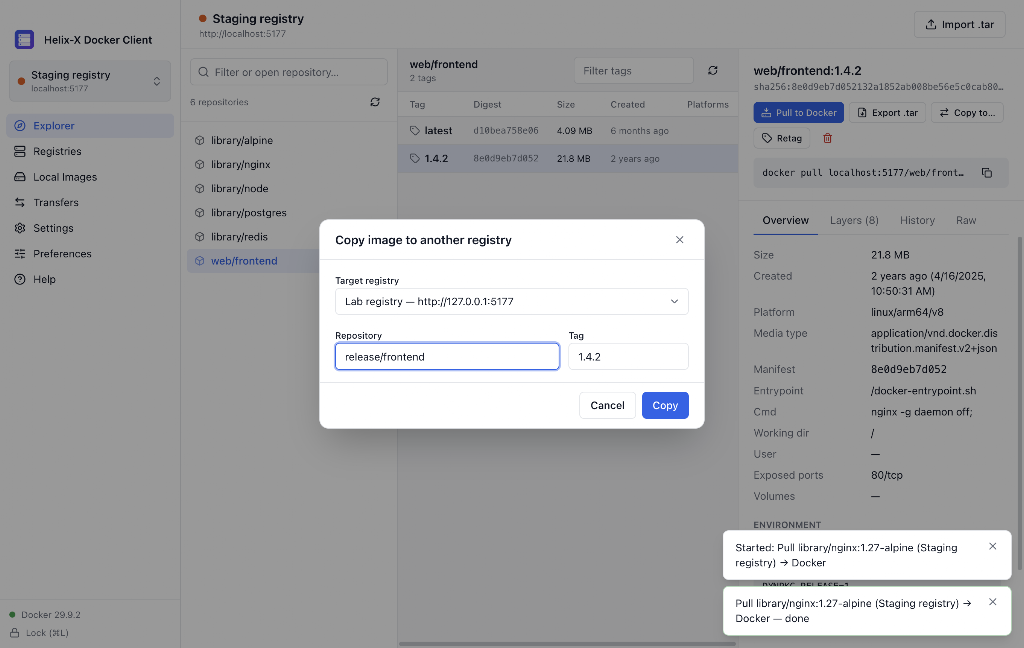
- Copy images between registries, either one platform or all of them. Within the same registry,
layers are mounted across repositories rather than uploaded again. - Export an image to a
.tarfile thatdocker load, podman, skopeo and crane can read. This is
useful for air-gapped environments. - Import a
.tar(docker saveoutput,.tar.gzor an OCI layout) into any registry. - Push local Docker images to a registry from the Local Images screen.
Transfers that recover from network errors

Every pull, push, copy, export and import runs in a background queue that shows progress and offers
cancel and retry.
- Transient errors (429, 502, 503, 504) are retried automatically with backoff, honouring the
registry’sRetry-Afterheader. - Interrupted layer downloads continue from where they stopped (HTTP Range).
- Downloaded layers go into a digest-verified layer cache, so pulling a similar image again is faster.
- System notifications and dock/taskbar progress tell you when a job finishes, even when the app is
in the background.
Settings and preferences

- Settings: auto-lock and keychain options, Docker endpoint override (
unix://,npipe://,tcp://), proxy and trusted CA certificates, parallel jobs and layers, cache size, and log level. - Preferences: shows where Docker stores your images (native engine, or the Docker Desktop,
OrbStack, Colima or Rancher VM disk), plus the default platform, local tag style, density, and date
and size formats. - Light, dark or system theme: choose it under Preferences → Appearance → Theme. System
follows your OS setting. The image at the top of this post shows dark mode, and the rest show light
mode.

How to use it
1. Install
Download the installer for your OS from the
Releases page:
| OS | Files |
|---|---|
| macOS | .dmg, .zip |
| Windows | NSIS installer, portable .exe |
| Linux | .AppImage, .deb, .tar.gz |
macOS: if the build is unsigned and macOS says the app “is damaged”, right-click → Open, or run
xattr -dr com.apple.quarantine "/Applications/Helix-X Docker Client.app".Linux AppImage: run
chmod +x *.AppImage. On Ubuntu 22.04 and newer, also installlibfuse2.
2. Create your vault
When the app first opens, choose a master password of at least 8 characters. It can’t be recovered, so
keep it somewhere safe. If you forget it, Reset vault on the login screen deletes the saved
credentials but keeps your registry connections.
3. Add a registry
- Go to Registries → Add registry.
- Pick the provider. Click Setup guide if you aren’t sure which credentials it needs.
- Enter a name, the URL and your credentials (leave the credentials empty for anonymous access).
- Click Test connection, then Add registry.
If you already use docker login, click Import docker logins to bring those registries in instead.
4. Explore and move images
- Open Explorer, choose a repository, then a tag.
- Check the Overview, Layers, History or Raw tabs.
- Choose an action:
- Pull to Docker to run the image locally.
- Copy to… to promote it to another registry or repository.
- Export .tar to carry it offline.
- Watch progress in Transfers.
5. Build from source (optional)
You need Node 22+ and pnpm 11 (corepack enable picks up the pinned version).
git clone https://github.com/suryakand/helix-x-docker-client.git
cd helix-x-docker-client
pnpm install
pnpm dev                 # run the app with hot reload

pnpm check               # typecheck + lint + unit tests
./scripts/build.sh       # installers for the current OS → apps/desktop/release/<version>/
Where to find the guides
Built-in Help (offline)

The full documentation ships inside the app and matches your installed version, so it works offline.
To open it:
- click Help in the sidebar,
- use the Help menu, or
- press F1.
The Add registry dialog also has the per-provider Setup guide described above.
Online documentation
| Guide | What’s inside |
|---|---|
| User guide | Every screen and workflow |
| Registry setup | Credentials and quirks for each provider |
| Troubleshooting | Common errors and fixes |
| Security | Vault design, threat model, Electron hardening |
| Architecture | Processes, modules, data flow, file formats |
| Building & releasing | Toolchain, packaging, signing, CI |
Under the hood
- Electron + React + TypeScript throughout, in a pnpm + Turborepo monorepo:
apps/desktop: the Electron app (main process, preload, React UI, e2e tests, packaging)packages/core: the engine (vault, registry client and providers, Docker client, transfers), with
no Electron dependencypackages/shared: types, the IPC contract, zod schemas, and provider definitions
- Packaged apps contain no
node_modules: everything is bundled by electron-vite. - The tests include unit tests, integration tests against real
registry:2containers, and Playwright
end-to-end tests that drive the built Electron app.
Links
- GitHub repository: https://github.com/suryakand/helix-x-docker-client
- Releases and downloads: https://github.com/suryakand/helix-x-docker-client/releases
- Changelog: CHANGELOG.md
- Contributing: CONTRIBUTING.md
- Issues and feature requests: https://github.com/suryakand/helix-x-docker-client/issues
- License: MIT
If Helix-X saves you a docker login or two, consider giving the repo a ⭐ and opening an issue with the
registry or workflow you’d like supported next.